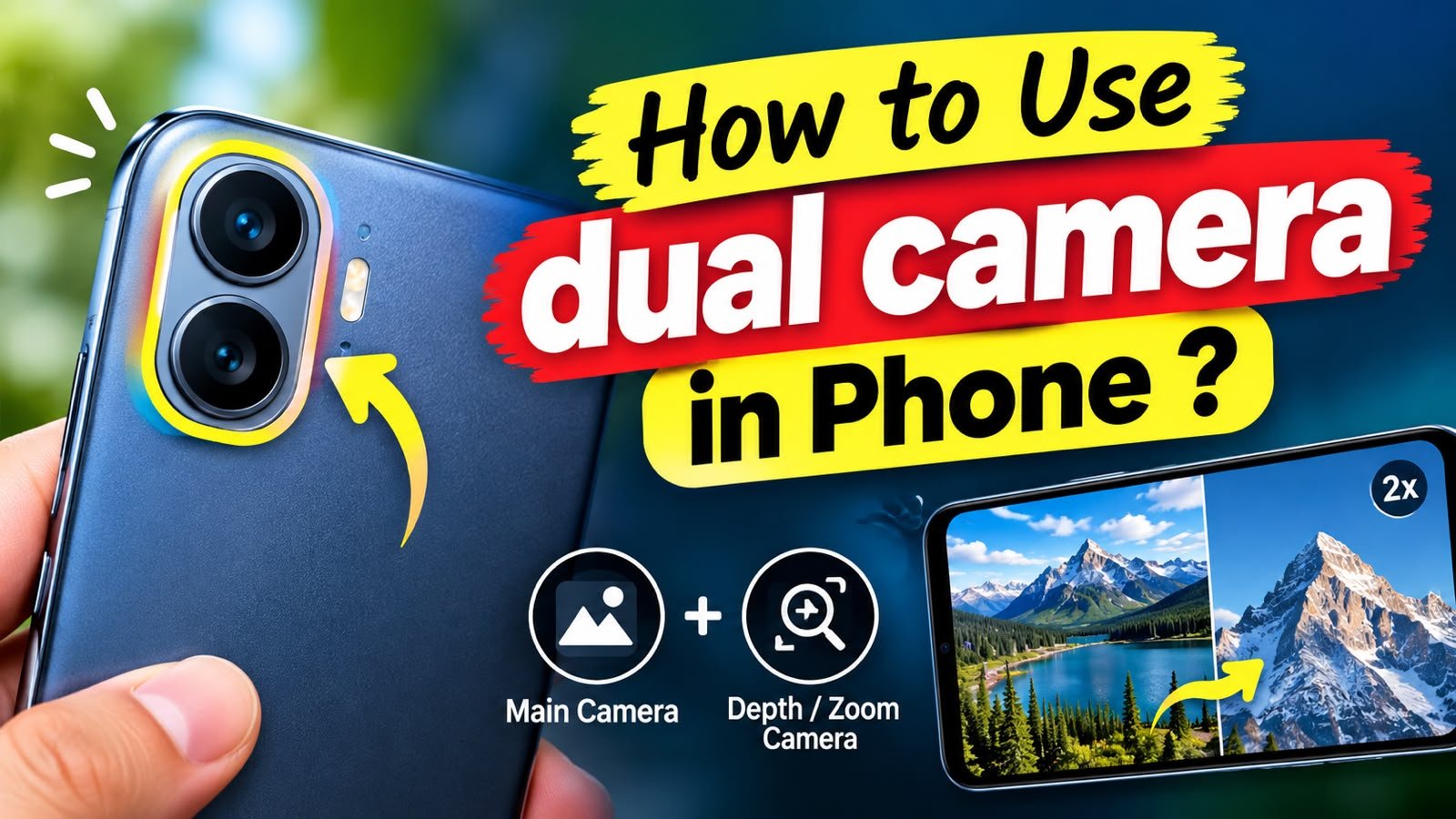
Modern smartphones have made photography easier than ever. Many phones now come with dual camera systems that allow users to capture different types of photos and videos using multiple lenses. Whether you want a wider landscape, a closer portrait, or better results in different lighting conditions, understanding how to use your phone’s dual camera can make a big difference.
But how does a dual camera actually work, and how can you use both cameras effectively? Let’s explore everything you need to know.
What Is a Dual Camera on a Phone?
A dual camera phone has two separate camera lenses on the back of the device. These cameras are designed to work independently or together, depending on the phone model and camera software.
Usually, the two lenses have different purposes. For example:
- Main camera: Used for everyday photos and videos.
- Ultra-wide camera: Captures a wider area, which is useful for landscapes and group photos.
- Telephoto camera: Helps capture distant subjects with optical zoom.
- Depth camera: Helps create background blur in portrait photography.
- Macro camera: Designed for taking close-up photos.
Not every dual-camera phone uses the same combination, so the available features depend on your smartphone model.
How to Use Dual Camera on Your Phone
Using a dual camera is usually simple because most smartphones automatically control the lenses through the default Camera app.
1. Open the Camera App
Start by opening your phone’s built-in Camera app. Make sure the camera lens is clean and the phone has enough storage if you plan to record videos.
You will normally see zoom options such as 0.5x, 1x, 2x, or 3x. These numbers can indicate different camera lenses depending on your phone.
2. Switch Between Camera Lenses
Tap the available zoom buttons to switch between lenses.
For example:
- 0.5x: Usually ultra-wide
- 1x: Usually the primary camera
- 2x: May use a telephoto lens or crop the main sensor
- 3x or higher: May use a dedicated telephoto camera
The exact options vary by manufacturer.
3. Use Portrait Mode
One of the most useful dual-camera features is Portrait Mode. It can use information from multiple cameras, along with software processing, to separate the subject from the background.
To use it:
- Open the Camera app.
- Select Portrait mode.
- Position your subject within the recommended distance.
- Keep the phone steady.
- Take the picture.
Portrait mode works particularly well for people, pets, and objects where you want a blurred background.
How to Take Better Photos With Dual Cameras
Simply having two cameras does not automatically guarantee better photos. You need to choose the right lens for the situation.
Use the Main Camera for Everyday Photography
The primary camera is generally the best option for normal photography. It often has the largest sensor and performs well in different lighting conditions.
Use it for:
- Family photos
- Food photography
- Outdoor pictures
- Everyday snapshots
Use Ultra-Wide for Large Scenes
If your phone includes an ultra-wide lens, use it when you need to capture more of the scene.
It is particularly useful for:
- Landscapes
- Buildings
- Large groups
- Travel photography
- Small rooms
Avoid getting too close to people’s faces with an ultra-wide camera because it can create noticeable distortion.
Use Telephoto for Distant Subjects
If your second camera is a telephoto lens, it can help you capture subjects that are farther away without relying entirely on digital zoom.
For example, you can use it for photographing signs, buildings, sports, or objects at a distance.
Can You Use Both Cameras at the Same Time?
Some smartphones support dual-camera recording, sometimes called Dual View, Dual Video, or Director’s View.
This feature allows the phone to use two cameras simultaneously. Depending on the device, you may be able to record yourself with the front camera while recording the scene with the rear camera.
To check whether your phone supports this feature:
- Open the Camera app.
- Look under More, Video, or camera modes.
- Search for options such as Dual Video or Dual View.
- Select the feature and start recording.
If you cannot find it, your phone may not support simultaneous camera recording through its built-in camera app. Some devices may offer similar functionality through third-party camera applications.
Tips for Better Dual Camera Results
For consistently better results, keep these tips in mind:
- Clean both camera lenses before taking photos.
- Use the main camera when lighting is poor.
- Avoid excessive digital zoom.
- Keep your phone steady when using telephoto lenses.
- Use ultra-wide mode for large scenes rather than simply stepping backward.
- Try Portrait mode for subjects that stand out from the background.
- Keep software and camera apps updated.
- Check your phone’s camera settings to discover additional features.
Conclusion
Learning how to use dual camera in a phone can significantly improve your mobile photography. Instead of relying on one lens for every situation, you can switch between the main, ultra-wide, telephoto, or other available cameras according to your needs.
Click here to download for IPhone
Start by experimenting with the different lens options in good lighting. Once you understand what each camera is designed for, you can take wider landscapes, sharper portraits, better close-ups, and more creative videos directly from your smartphone. The best approach is simple: know what each lens does, choose the right one for the scene, and practice regularly.